Welcome

Welcome to Shot on iPhone Master Class

You are holding one of the most capable cameras ever made. This course exists to help you stop using it on accident and start using it with intention.

What You Will Learn

This course covers everything you need to take consistently great photographs with your iPhone: how the camera system works, how to read and control light, how to compose images that stop people mid-scroll, how to edit in Lightroom Mobile, and how to build a personal visual style that makes your work recognisable.

There are no software subscriptions required beyond the free tier of Lightroom Mobile, and no expensive gear lists. Everything in this course can be done with the iPhone already in your pocket.

How to Use This Course

Each module is designed to be worked through in order. The camera fundamentals in the early modules inform how you approach editing in the later ones. Skip ahead if something specific is urgent, but come back.

Each module ends with a practical assignment. These are the most important part. Information without practice does not stick. The photographers who improve fastest are the ones who go and shoot immediately after each module, not the ones who wait until they have finished everything.

A Note on Equipment

This course is built for iPhone 12 and later. Some features (ProRAW, Macro, Action Mode) require specific models and are noted where relevant. If your phone is older, most of the course still applies. The camera fundamentals, compositional principles, and editing techniques work on any iPhone with a decent camera.

The Community

Your course includes access to a private Discord community of fellow students and direct access to Suave. Share your work, ask questions, and get feedback as you go through each module. Some of the biggest improvements come from showing your work to others and hearing what they see in it. The link is in the sidebar whenever you are ready.

Before You Move On

  • This course covers photography only, not video
  • Work through modules in order for the best results
  • Complete every assignment immediately after the module
  • Join the Discord community via the sidebar link
  • Lightroom Mobile (free tier) is the only editing app you need

Your Assignment

Before you open the next module, take one photo. It can be anything: something in the room with you, the view from your window, your coffee. Do not edit it. Just look at it afterward and notice what you like and what you would change. This is your starting point. Share it in the Discord and let the community know you are starting the course.
Module 01

Your iPhone is a Professional Camera

Most people hold one of the most sophisticated cameras ever made in their pocket and use it on full auto. That ends here. This module tears open the hood of your iPhone camera system and gives you full creative control from the moment you open the app.

Understanding the iPhone Camera System

The iPhone camera is not one camera: it is a system. Depending on your model, you have a Main (wide), Ultra-Wide, and Telephoto lens. Each has a different field of view, depth of field, and low-light capability. Understanding when to use each is your first major unlock.

The Main lens (1x) is your workhorse. It has the largest sensor and performs best in any light. The Ultra-Wide (0.5x) is useful for architecture and landscapes but introduces distortion at the edges, so use it intentionally. The Telephoto (2x, 3x, or 5x depending on model) compresses depth and is ideal for portraits, street photography, and anything where you want to isolate your subject.

Image: Three-panel side-by-side — Ultra-Wide (0.5x) vs Main (1x) vs Telephoto (longest available) on the same subject. Annotations mark: edge distortion on Ultra-Wide, background compression increase on Telephoto, sharpness difference across lenses.

Exposure Lock and Focus Lock

One of the most common errors in iPhone photography is letting the camera choose both focus and exposure automatically. These are separate decisions and you should control both. Tap to set focus. Then tap and hold on a bright or dark area of the frame to lock both focus and exposure (AE/AF Lock will appear). Drag the sun icon up or down to fine-tune exposure independently after locking.

The rule: always lock exposure on the most important tonal area of your scene. If you are shooting a backlit portrait, lock on the face, not the bright background. The sky will blow out but your subject will be correctly exposed, and you can recover the sky in editing.

For a full walkthrough of every iPhone Camera setting — including ProRAW setup, Grid, Live Photos, Mirror Front Camera, and Preserve Settings — head directly to Module 02. That module is designed as a step-by-step settings guide you work through with your phone open alongside it.

Burst Mode: Shooting Fast-Moving Subjects

Burst mode (hold the shutter or slide it left) captures 10 frames per second. Use it for any fast-moving subject: sports, pets, children, street moments. You will have many frames to choose from in Photos.

Key Takeaways

  • Use the Main (1x) lens as your default: it has the best sensor
  • For full camera settings setup (ProRAW, Grid, Live Photos), complete Module 02 immediately after this one
  • Always tap to focus, then lock exposure by tapping and holding
  • Drag the sun icon to manually adjust brightness after locking
  • Use burst mode for any moving subjects

Your Assignment

Shoot the same subject with each available lens: 0.5x, 1x, and your longest telephoto. For each shot, lock exposure by tapping and holding the screen. Compare the three images. Notice how depth compression, background blur, and perspective change between lenses. Share your favourite of the three in the Discord and let the community know you are on Module 01.

Module 02

Essential Camera Settings and Controls

Before you shoot anything serious, spend five minutes in Settings and configure your iPhone camera correctly. Most people never do this. The defaults are designed for casual snapshots, not intentional photography.

This module is best followed step by step using the written instructions and screenshots below. Open your iPhone Settings app alongside this page and work through each section as you read.

Getting to the Right Settings

Open the Settings app and scroll down to Camera. This is where almost all the important photography configuration lives. Work through it top to bottom using this module as your guide. It takes under five minutes and makes a meaningful difference to every photo you take from here on.

Format: Setting Up for Quality

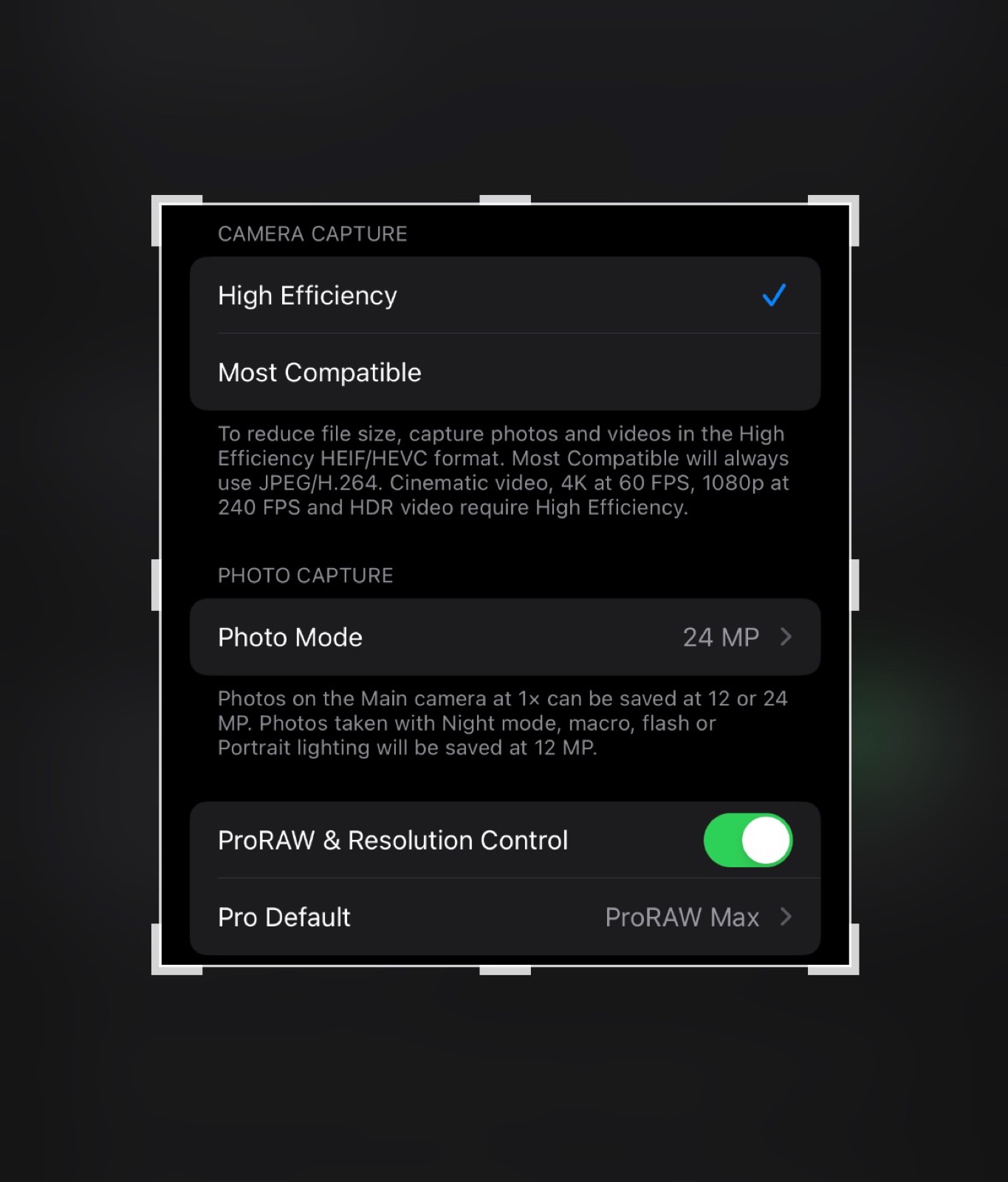
Under Formats, you will see two options: High Efficiency and Most Compatible. High Efficiency shoots HEIF files (smaller, looks great, less editing latitude). Most Compatible shoots JPEG (larger, more universally supported, less quality). Leave this on High Efficiency.

If your device is iPhone 12 Pro or later: also toggle Apple ProRAW on in this same menu. ProRAW gives you dramatically more editing flexibility. When you want to use it for a specific shot, tap the RAW badge in the top corner of the camera app. Leave it off for casual shots and on for anything intentional.

Grid and Level

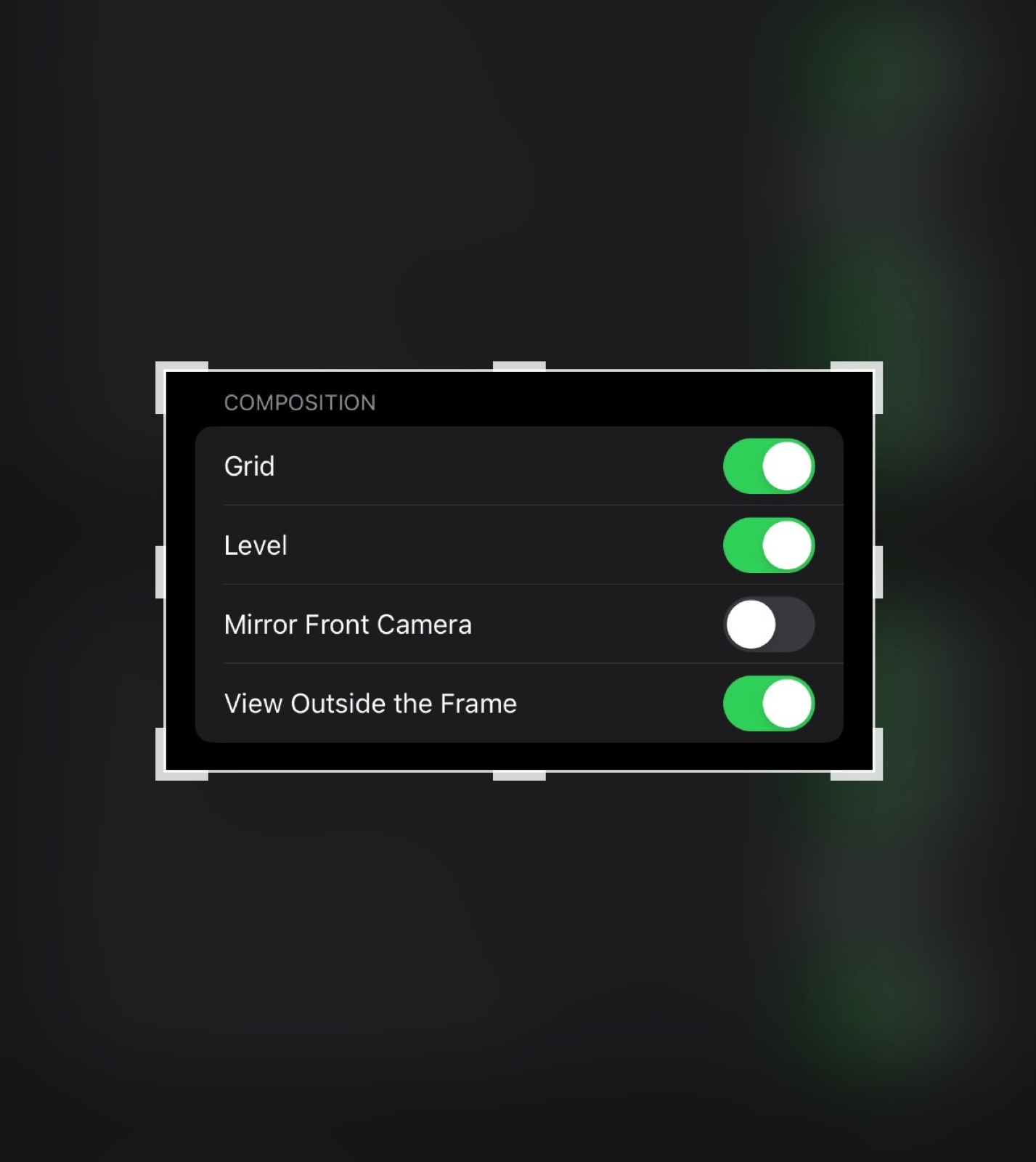
Turn on Grid. This overlays a 3x3 rule-of-thirds grid over your viewfinder and activates the level indicator. The level indicator appears as two small crosshairs: when they align and turn yellow, your phone is perfectly level. This is indispensable for architecture, flat lays, and any shot with a horizon line.

Flash: Turn It Off

iPhone flash produces harsh, flat light that makes almost every photo look worse. The only situation where it helps is complete darkness with no alternative. Keep flash off by default and tap the lightning bolt icon to enable it only when genuinely needed. Natural and ambient light almost always produces a better result.

Live Photos: Know When to Disable

Live Photos capture 1.5 seconds of footage before and after your shot. This adds file size and can cause slight blur if you move immediately after pressing the shutter. For deliberate, static photography, turn Live Photos off by tapping the concentric circles icon at the top of the camera. Keep them on for casual moments and portraits where you might want to pick the best frame later.

Mirror Front Camera

By default, selfies are shown as a mirror image. This means people see the version of you that you see in the mirror, not how others see you in person. Turning off Mirror Front Camera (found in Settings, then Camera) makes your selfies show you as others see you. Neither option is objectively better; this is a personal preference, but it is worth knowing the difference and making a deliberate choice.

Preserve Settings

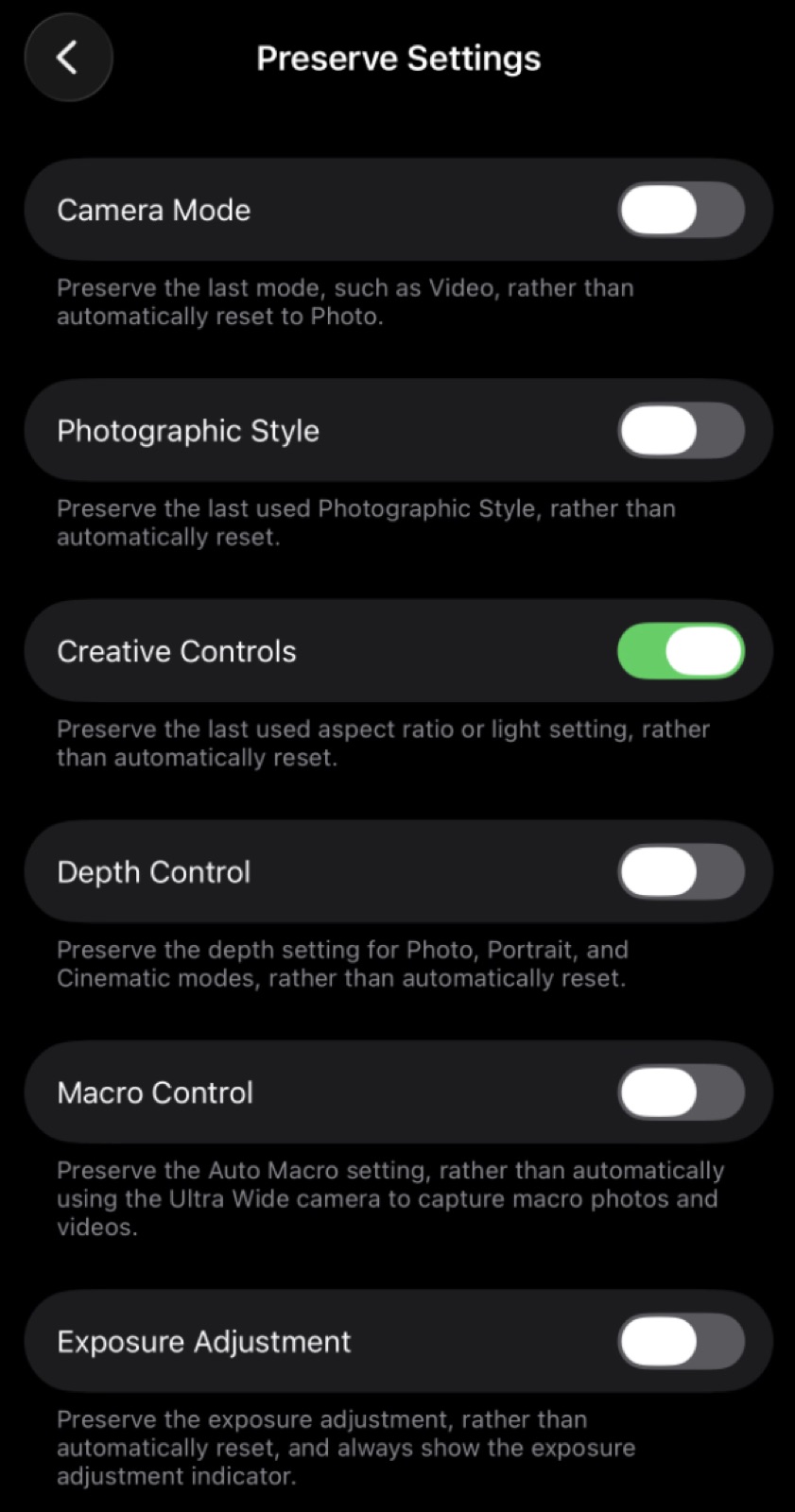
Enable Preserve Settings and toggle on Camera Mode, Creative Controls, and Exposure Adjustment. This makes the camera app remember your last used mode and settings between sessions. Without this, every time you close and reopen the camera it resets to defaults, which is frustrating if you regularly shoot in a specific mode.

Camera Controls and Exposure (iOS 17 and Later)

On iPhone 16 and later, there is a dedicated Camera Control button on the right edge of the phone. You can configure what a single press, double press, or press and hold does in Settings, then Camera, then Camera Control. The most useful configuration: single press opens camera, double press switches lens, and press and hold adjusts exposure. Note: iPhone 15 Pro introduced a different button called the Action Button, which is a customisable shortcut key but has no camera-specific controls. Do not confuse the two.

On all recent models, you can add an Exposure control to the camera interface. In the camera app, tap the arrow at the top to reveal the control bar, then tap the Exposure icon (sun with a plus/minus). Drag the slider to adjust exposure before you shoot, rather than dragging the sun icon after locking focus.

Key Takeaways

  • Turn on Grid: it adds the rule-of-thirds overlay and the level indicator
  • Keep flash off by default and enable it only when nothing else is possible
  • Enable ProRAW in Formats if your device supports it
  • Turn on Preserve Settings so the camera remembers your configuration
  • Disable Mirror Front Camera if you want selfies to show how others see you

Your Assignment

Open Settings, then Camera, and work through every setting covered in this module. Enable grid, set your format correctly, turn off Mirror Front Camera, and enable Preserve Settings. Once done, take a photo with the grid on and try to get all three horizontal lines and all three vertical lines of the overlay deliberately placed. Notice how the grid changes the way you frame the shot. Share the result in the Discord and let the community know you are on Module 02.

Module 03

The Art of Composition

A technically perfect photo with weak composition is forgettable. A slightly blurry photo with extraordinary composition is unforgettable. Composition is the invisible grammar of photography, and once you see it, you can never unsee it.

Composition is a visual skill best learned by looking at a lot of great photos and then going out to shoot. Work through the written content below, then search YouTube for "composition in photography" to find video breakdowns that resonate with your style. Return here for the assignment once you feel confident in the concepts.

Beyond Rule of Thirds

The rule of thirds says: place your subject at the intersection of imaginary grid lines dividing your frame into nine sections. It is a useful starting point, but it is not a law. It is a tendency. Many of the most striking photos break it entirely. The point is not the rule itself; it is that your subject placement should be a deliberate decision, not a default.

Experiment: shoot the same subject centred, then thirds-placed. Look at both. Which creates more tension? Which feels more still? Context determines which is right.

Image: Same subject shot centred vs. rule-of-thirds placement

Leading Lines

Lines that draw the eye through the frame are one of the most powerful compositional tools available. Roads, fences, corridors, rivers, shadows, building edges: all of these can serve as leading lines. The key is that they should lead toward your subject or toward a point of visual interest, not away from it.

On your next walk, actively look for lines and position yourself so they terminate at your subject. Streets become vectors. Staircase railings become arrows. Architecture becomes a frame within a frame.

Negative Space

Negative space is the empty area around your subject. Used deliberately, it creates a sense of scale, isolation, solitude, or calm, and it makes your subject feel more intentional. A person standing on an empty beach. A single plant against a white wall. A bird against a featureless sky.

The iPhone Ultra-Wide lens makes negative space compositions easier because it emphasises the environment around your subject. Use it for this purpose, but watch the distortion at the edges.

Layering and Depth

Flat photos feel two-dimensional. Photos with foreground, midground, and background feel three-dimensional. Create depth by including elements at different distances from the lens. A close-up flower in the foreground, your subject in the midground, a soft cityscape behind. Even a slight blur on the foreground using Portrait mode creates the illusion of depth.

Frame Within a Frame

Using natural or architectural frames to surround your subject adds a secondary layer of composition. A window, a doorway, an arch, tree branches overhead, a tunnel opening: these create a visual container around your subject that directs the viewer's attention and adds context to the environment.

Symmetry and Patterns

The human eye is hardwired to notice symmetry and patterns, and equally hardwired to notice when they are broken. Shoot symmetrical architecture dead-on with the camera perfectly level. Then find the element that breaks the symmetry. That disruption is where the interest lives.

Key Takeaways

  • Treat rule-of-thirds as a starting point, not a rule
  • Look for lines that lead the eye to your subject
  • Empty space around a subject creates impact: do not fear it
  • Include foreground elements to create depth and dimension
  • Natural frames (windows, arches, doorways) add a second compositional layer

Your Assignment

Pick one compositional technique from this module: leading lines, negative space, or frame within a frame. Spend 20 minutes shooting only photos that use that single technique. No editing. Focus entirely on where you place the subject in the frame and what surrounds it. Share your best shot in the Discord, tell the community which technique you used, and let them know you are on Module 03.

Module 04

Understanding and Using Light

Every photograph is a record of light. Not the thing you photographed: the light falling on it. Understanding light is the single biggest leap you can make as a photographer, and it costs nothing.

Understanding light is best learned by observing it in real life. Read through this module carefully, then spend time noticing how light behaves around you throughout the day. Searching YouTube for "understanding light in photography" will surface excellent visual breakdowns to complement the written content here.

Quality of Light: Hard vs. Soft

Hard light comes from a small, direct source relative to the subject: midday sun, a bare light bulb. It creates sharp shadows with distinct edges. Soft light comes from a large diffused source: an overcast sky, light bouncing off a white wall, a subject positioned near a large window. It creates gentle, gradual shadows with no hard edges.

Neither is better. Hard light is dramatic, graphic, and high-contrast. Soft light is flattering, gentle, and even. The key is knowing which you are working with and using it intentionally.

Image: Portrait shot in hard direct light vs. soft window light

Direction of Light

Front lighting (light source behind the camera) is flat and even. Safe, but rarely interesting. Side lighting creates texture and dimension: it rakes across surfaces and creates shadows that reveal form. Backlighting (subject between camera and light source) creates silhouettes, rim lighting, and a luminous glow through translucent subjects like leaves or hair. Backlight is the most dramatic of the three and the trickiest to expose correctly.

For backlit portraits: lock exposure on your subject's face (tap and hold), not on the bright background. The background will overexpose but your subject will be properly lit. Recover the highlights in Lightroom.

Colour Temperature

Light has colour. Direct sunlight at midday is cool and neutral. Golden hour (the hour after sunrise and before sunset) is warm orange-amber. Shade and overcast skies are cool and slightly blue. Indoor tungsten bulbs are very warm orange. Fluorescent office lights are green-tinted.

Your iPhone's Auto White Balance adjusts for this automatically, which is useful. But it can also neutralise warmth you want to keep, especially at golden hour. If you are shooting ProRAW, you can correct or enhance white balance freely in Lightroom. If shooting HEIF, locking white balance before shooting helps.

The Golden Hour Windows

The hour after sunrise and hour before sunset are called golden hour for good reason: the sun is at a low angle, its light travels through more atmosphere and becomes warm, diffuse, and directional. Shadows are long and soft. Everything looks better. Check the golden hour time in a weather app or use an app like PhotoPills to plan exactly when it happens at your location.

Blue hour (the 20 to 30 minutes after sunset and before sunrise) is underrated. The sky becomes a deep gradient from warm orange at the horizon to deep blue overhead, and the ambient light is soft and even. It is an extraordinary window for cityscapes, architecture, and moody portraits.

Using Window Light for Portraits

A large window is the best portrait light available to most photographers. Position your subject at 45 degrees to the window: not directly in front, not side-on, but angled. This creates a classic Rembrandt-style light with illumination on one side of the face and a soft shadow on the other. Move the subject closer or further from the window to control the softness: closer is softer, further is harder.

Avoid windows with direct sunlight streaming in. This is hard light. Overcast days or rooms where sunlight bounces off a wall first give you beautiful soft indirect light.

Key Takeaways

  • Soft light (diffused, large source) is flattering; hard light (direct, small source) is dramatic
  • Side lighting creates dimension and texture; front lighting flattens
  • Backlight is powerful: lock exposure on your subject, not the background
  • Shoot during golden hour and blue hour whenever possible
  • A large window at 45 degrees to your subject is a free professional portrait light

Your Assignment

Find a large window in your home with good natural light. Position a subject at three different angles and photograph each: subject facing the window directly, subject at 45 degrees to the window, and subject with their back to the window. Compare how the shadow shape and mood change in each image. Share your favourite of the three in the Discord and let the community know you are on Module 04.

Module 05

Shooting in Any Condition

Weather, time of day, and indoor environments each require a different approach. This module gives you a specific playbook for challenging situations so that "the light is bad" stops being an excuse and starts being an opportunity.

This module is delivered as a written playbook with example photos for each lighting condition. Read through, then go shoot in the condition you find most difficult. The technique only sticks once you have tried it in the situation it was made for.

Night Photography

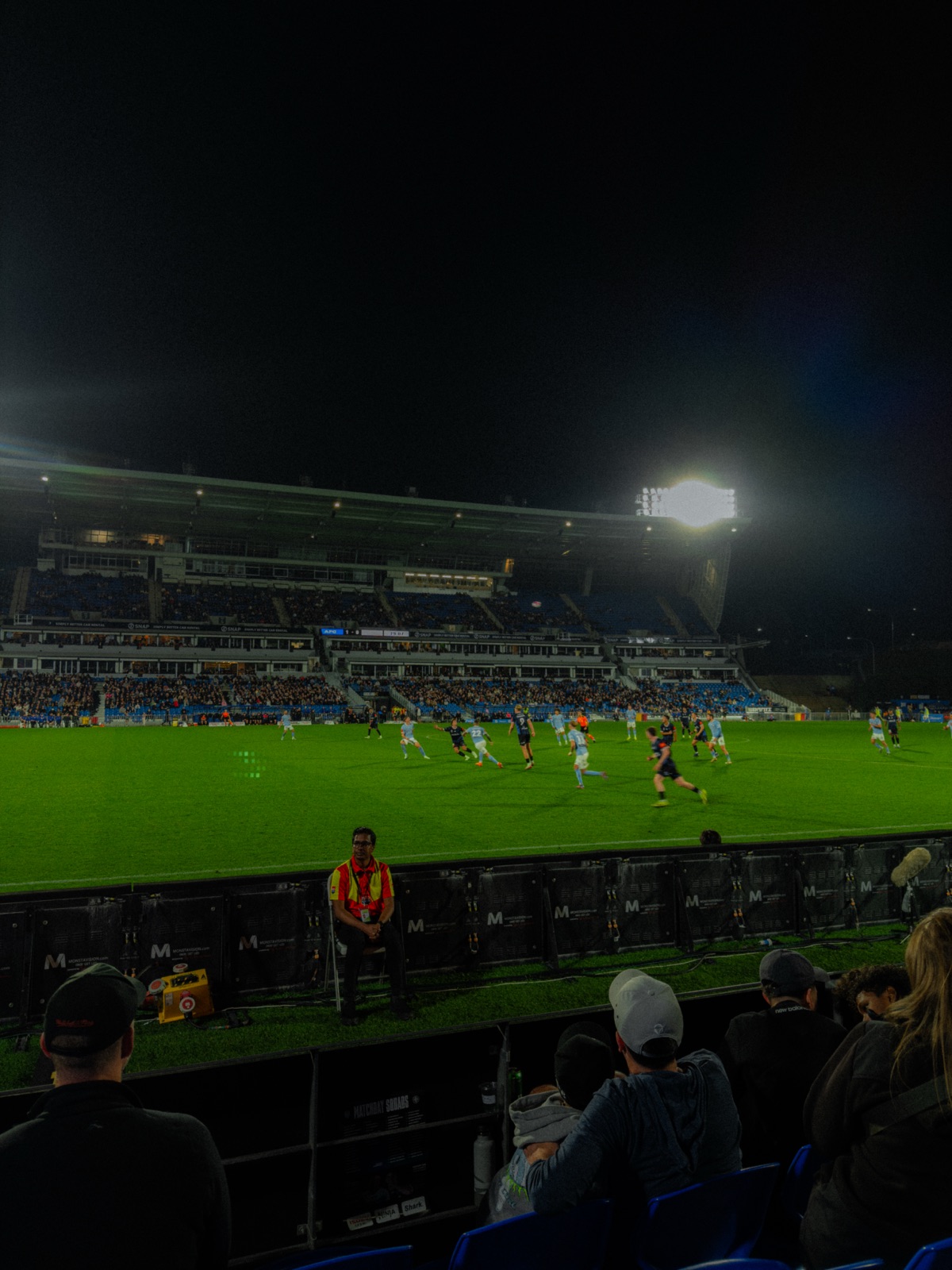
The iPhone Night Mode is remarkable, but it comes with trade-offs. When handheld, Night Mode exposes for 1 to 10 seconds (you can see the duration in the camera UI). On a tripod or stable surface, the iPhone detects the stability and can extend up to 30 seconds for dramatically cleaner low-light results. Any camera movement during this exposure creates blur. Brace your elbows against your body, lean against a wall, or use a tripod. Hold completely still through the entire countdown.

Night Mode blends multiple exposures to reduce noise and recover detail. For static scenes this is excellent. For moving subjects (cars, people, water) it creates ghost trails and blur, which can be used creatively or avoided by switching to standard shooting and accepting more noise.

In low light, always expose for the brightest important area first, then brighten in Lightroom. Pushing shadows in post from a slightly underexposed file is always better than trying to recover a blown-out bright area.

Image: Night shot comparison: handheld blur vs. braced steady shot

Golden Hour and Harsh Midday Sun

Module 04 covers the qualities and timing of golden hour light. Here is how to actually shoot during it.

During golden hour, let the warmth show. Do not neutralise it with white balance correction. Lock your exposure on your subject's face or the midtones of the scene. Shoot into the sun (lens flare, while technically imperfect, often gives photos a dramatic editorial look) or use the sun as a rim light with your subject's back to it.

Harsh midday sun is the hardest light to work with. Shadows are overhead and unforgiving on faces. Solutions: move into open shade (under trees, between buildings), find reflective surfaces that bounce light back onto your subject, or embrace the contrast intentionally for graphic street photography.

Overcast and Flat Light

Cloudy days give you a giant softbox. The entire sky is your light source. This is ideal for portraits (no harsh shadows), macro photography (even illumination on detail), and any subject where texture matters. The downside: flat light produces flat-looking photos unless you compensate with composition and editing.

In Lightroom: add Texture and Clarity to restore definition. Use the Tone Curve to add contrast that the flat light did not provide. Lift the Shadows, deepen the Blacks, and your overcast shot can look dramatic and intentional.

Indoor Low-Light Photography

Indoors without a window is the most demanding environment for an iPhone camera. The sensors are small and noise increases rapidly in low light. Strategies: move toward any available light source (a lamp, a screen, a candle). The further your subject is from the light, the noisier the image. Get closer.

For interior photography without people, use Night Mode with the phone on a stable surface. For food or product shots, position your item near a bright window and use a piece of white card on the opposite side as a reflector to fill in shadows.

Rain, Fog, and Bad Weather

Bad weather is often extraordinary photography weather. Rain creates reflections on wet surfaces: puddles become mirrors for city lights. Fog adds atmosphere and depth compression that no editing can fully replicate. Overcast skies prevent harsh shadows on architectural photography.

Protect your iPhone from sustained rain. While newer iPhones are water-resistant, they are not waterproof and repeated water exposure degrades the seals over time. A light shower is generally fine for quick shots, but avoid shooting in heavy rain without protection.

Key Takeaways

  • Night Mode requires stillness: brace or use a tripod for the full exposure duration
  • In low light: underexpose slightly and lift in editing rather than overexpose
  • Midday sun: seek open shade, use reflectors, or embrace the contrast
  • Overcast light is flattering: compensate its flatness with editing contrast
  • Rain, fog, and reflections are creative opportunities, not obstacles

Your Assignment

Go shoot in one condition you normally avoid: after dark, in rain, in harsh midday sun, or in an indoor low-light environment. Apply the specific technique from this module for that condition. Come back with at least five shots. Share the best one in the Discord, note what approach you used, and let the community know you are on Module 05.

Module 06

iPhone Camera Features Worth Trying

Your iPhone camera has a set of built-in features that most people ignore or misuse. This module shows you what each one actually does, when it is worth reaching for, and when to leave it alone.

Each feature covered in this module is demonstrated through examples and screenshots below. Open your Camera app alongside this page and try each feature as you read through it.

Portrait Mode

Portrait Mode uses computational depth mapping to blur the background and create a shallow depth-of-field effect. On most iPhones, it works best on the 1x lens for people portraits. The key is distance: you need to be between 0.5m and 1.5m from your subject for the effect to activate. Too close or too far and the mode will warn you to adjust.

One of the best features of Portrait Mode on recent iPhones: you can adjust the depth effect after shooting. In the Photos app, tap Edit on a Portrait photo and use the depth slider at the bottom to increase or decrease the blur intensity. You can also apply different lighting effects (Natural, Studio, Contour, Stage) in post without losing the original.

Portrait Mode is also excellent for objects, not just people. A well-lit product on a clean surface with Portrait applied can look as polished as a studio shot.

Image: Portrait Mode on a person vs. an object, same depth slider value

Photographic Styles

Photographic Styles are Apple's version of in-camera colour profiles. Available from iPhone 13 onwards, they apply a consistent colour and tone treatment to every photo you take without affecting skin tones the way a blanket filter would. Options include Vibrant, Rich Contrast, Warm, and Cool.

The key difference between Photographic Styles and a filter: Styles interact with the image data more intelligently than a filter, which is applied on top and flattens your editing options. On iPhone 16 and later, Photographic Styles are fully non-destructive and can be adjusted or removed after the fact. On iPhone 13 to 15, they are applied at capture and cannot be fully reversed, so choose your style carefully before shooting. If you find a Style you like, use it consistently as a starting point for your look.

Macro Photography (iPhone 13 Pro and Later)

On iPhone 13 Pro and later models, the Ultra-Wide lens can focus at distances as close as 2cm, enabling true macro photography. When you bring the phone within a few centimetres of a subject, the camera automatically switches to the Ultra-Wide lens for macro focus.

You can disable this automatic switch in Settings, then Camera, then Macro Control. With Macro Control enabled, a flower icon appears in the camera app and you choose when to activate it rather than having it switch automatically. This is recommended: the auto-switch can be disorienting when you did not intend it.

Good macro subjects: flowers, food details, textures (fabric, wood grain, concrete), insects, water droplets, jewellery. The key to sharp macro shots is stillness: at 2cm distance, any movement creates significant blur. Brace your hand against a stable surface.

Action Mode

Action Mode (iPhone 14 and later) is an extreme stabilisation mode designed for handheld video of fast-moving subjects. It crops into the frame significantly to enable the stabilisation. For photography specifically, Action Mode does not apply: the standard camera uses optical image stabilisation for stills. If you are photographing action, use Burst Mode instead (covered in Module 01).

Panorama

Panorama mode stitches multiple frames together as you pan across a scene. The key to a clean panorama: move slowly and steadily, keep the arrow on the centre line, and avoid scenes with moving subjects (people, cars, water) as they create ghosting artefacts in the stitch.

Panorama is most effective for wide landscapes, interior spaces you cannot step back from, and long architectural facades. It is also creative when shot vertically: hold the phone in landscape orientation and pan upward to capture a tall building in a single frame.

Night Portrait

Night Portrait combines Night Mode and Portrait Mode to create a blurred-background portrait in low light. It requires more time to process than a standard portrait and you need to stay still during the capture. Position your subject near the brightest available light source: a lamp, a lit window, neon signage. The result is a cinematic portrait that is difficult to achieve in low light with any other approach.

Key Takeaways

  • Portrait Mode works best at 0.5m to 1.5m distance: adjust depth intensity in Photos afterward
  • Photographic Styles add consistent colour treatment without flattening your edit options
  • Macro is available on 13 Pro and later: get within 2cm and stay very still
  • For action photography, use Burst Mode rather than Action Mode
  • Panorama works best for still scenes: avoid moving subjects in the frame

Your Assignment

Try Portrait Mode on three different subjects: a person, an object (something on a table), and something in nature. For each shot, experiment with your distance to the subject and watch when the depth effect activates. After shooting, open one in Photos and use the depth slider and lighting effects. Notice which lighting style suits the image best. Share your favourite result in the Discord and let the community know you are on Module 06.

Module 07

Introduction to Lightroom Mobile

Lightroom Mobile is available free on the App Store and contains everything you need to edit professional-quality photos. This module is your guided orientation: we will demystify the interface, set up a clean workflow, and build the habits that will make every future edit faster and better.

The Lightroom interface is best learned by doing, not by watching someone point at it. Read through this orientation, then jump straight into Module 08 — that is where the real Lightroom walkthrough begins, and you will pick up the interface naturally as we edit a real photo together across Modules 08 to 11.

Setting Up Your Import Workflow

The cleanest workflow: shoot in the iPhone Camera app (not Lightroom's built-in camera), then import into Lightroom. This way you have your originals in your Camera Roll and your edited versions in Lightroom. Open Lightroom, tap the plus icon, select Add Photos, then choose from your Camera Roll.

Enable Auto Import in Lightroom settings to automatically sync new photos from your Camera Roll. This means every photo you take is immediately available for editing in Lightroom without a manual import step.

Image: Lightroom interface with import workflow annotated

Understanding the Interface

When you open a photo for editing, you will see the main editing panel at the bottom. The panels from left to right are: Light (exposure, contrast, highlights, shadows, whites, blacks), Color (white balance, vibrance, saturation), Effects (texture, clarity, dehaze, vignette), Detail (sharpening and noise reduction), Optics (lens corrections and distortion), Geometry (perspective correction), and HSL/Color Mix (individual colour channel control).

Additionally, the Curve panel (the curved line icon) and Color Grading panel (three overlapping circles) are the most powerful and are covered in depth in Modules 09 and 10.

The Before/After View

Always check your edit against the original. In Lightroom Mobile, tap and hold on the photo to see the Before view. Release to see After. Do this multiple times throughout your edit. It is easy to over-edit when you have been staring at a photo for ten minutes. The Before/After comparison resets your perception.

Non-Destructive Editing

Everything you do in Lightroom is non-destructive: your original photo is never modified. All edits are stored as instructions applied on top of the original. This means you can reset everything at any time (three-dot menu, then Reset to Original), undo any step, or revisit edits weeks later. Never fear over-editing because nothing is permanent.

Building an Editing Order

Professional editors follow a consistent order. Adopt this workflow from the beginning:

  1. Crop and straighten: fix composition and level the horizon first
  2. White Balance: get the colour temperature correct before adjusting tones
  3. Exposure: set overall brightness
  4. Highlights and Shadows: recover detail in bright and dark areas
  5. Whites and Blacks: set the endpoints of the tonal range
  6. Clarity and Texture: add midtone contrast and fine detail
  7. Tone Curve: contrast and tonal shaping
  8. HSL: target individual colour ranges
  9. Color Grading wheels: shadow, midtone, and highlight colour casts
  10. Noise reduction and sharpening: final detail work

This order matters. Fixing white balance before exposure means you are adjusting the right tones, not compensating for colour errors. Adding contrast after you have balanced the tonal range ensures the contrast falls in the right places.

Key Takeaways

  • Shoot in the native Camera app, import to Lightroom for editing
  • Use Before/After (tap and hold) regularly to check your edit against the original
  • Lightroom is fully non-destructive: you can always reset
  • Follow a consistent editing order: WB, Exposure, Highlights/Shadows, Whites/Blacks, Clarity/Texture, Tone Curve, HSL, Color Grading, Detail
  • Lightroom Mobile free tier includes everything you need

Your Assignment

Import three of your recent photos into Lightroom Mobile. Practice the Before/After comparison on each by tapping and holding. Then reset one photo back to the original and re-edit it from scratch following the editing order from this module: White Balance first, then Exposure, then Highlights and Shadows, then Whites and Blacks. Notice how each step builds on the previous one.

Module 08

Exposure & Color Fundamentals

The Light panel and Color panel in Lightroom are where 80% of your editing happens. Master these tools and you can fix almost any photograph. This module breaks down every slider: what it does, how much to use it, and in what order.

The Light Panel: Understanding Each Slider

Exposure: This slider shifts the overall brightness of the entire image uniformly. Think of it as adjusting the camera's aperture or shutter speed after the fact. A value of 0 is unchanged. Move it between -2 and +2 EV typically. Use it to set a rough starting brightness, then refine with the other sliders.

Contrast: Contrast separates the light and dark areas further apart (positive values) or closer together (negative values). Positive contrast makes photos feel punchier and more defined. Use sparingly: between +10 and +30 is usually sufficient. Heavy contrast (+60 and above) crushes shadow detail and blows highlights. The Tone Curve gives you far more nuanced control over contrast, which we cover in Module 09.

Highlights: Affects only the bright areas, the top quarter of the tonal range. Pulling Highlights down (-20 to -60) recovers blown-out skies and overexposed areas. ProRAW files can recover significantly more highlight detail than HEIF files. Rarely push Highlights above +20.

Shadows: Affects only the dark areas. Pushing Shadows up (+20 to +60) lifts detail from underexposed areas. This is especially powerful for ProRAW files. The classic film lift look is partly created by lifting Shadows to around +20 to +30. Do not push too far or your photo will look flat and foggy.

Whites: Sets the brightest point of your image. Increase Whites until the brightest area just begins to touch the right edge of the histogram (just before clipping). This creates a clean, bright, open look. Decrease Whites to prevent any highlights from blowing out.

Blacks: Sets the darkest point. Pulling Blacks down (-20 to -50) deepens the shadows and creates rich contrast in the dark areas. This is a powerful finishing move: after you have set Highlights and Shadows, pull Blacks down to taste. The combination of lifted Shadows with pulled Blacks is a classic look: lifted midtones with deep, clean shadows.

Image: Lightroom Light panel with each slider annotated and its effect shown

White Balance: Temperature and Tint

White Balance corrects the colour cast of your light source so that whites appear white (or intentionally warm or cool for creative effect). Temperature slides from cool blue (left) to warm orange (right). Tint slides from green (left) to magenta (right).

For portraits: a slight warmth (+200 to +400 Temperature) is usually flattering. For cool, editorial looks: pull Temperature to the blue side. For natural daylight exteriors: start around 5500K and adjust from there.

The As Shot preset starts from what the camera recorded. The Auto preset is often good but biases toward neutral. Try both and adjust from whichever gets you closer to your vision.

Vibrance vs. Saturation

Both increase colour intensity but behave differently. Saturation increases all colours equally: push it too far and skin tones become orange and the image looks fake. Vibrance is intelligent: it boosts muted colours more than already-saturated ones, and it protects skin tones. For almost all photos, use Vibrance to add colour richness (+10 to +25) and leave Saturation at 0 or make only small adjustments.

Key Takeaways

  • Use Exposure for overall brightness, then Highlights and Shadows for targeted recovery
  • Pull Highlights down to recover blown areas; push Shadows up to reveal dark detail
  • Whites sets your bright ceiling; Blacks sets your dark floor
  • Use Vibrance (not Saturation) to add colour richness naturally
  • White Balance Temperature: warmer for portraits, cooler for editorial looks

Your Assignment

Choose a photo with a challenging tonal range: a bright sky and a darker subject, or a dimly lit room with a bright window. Work through the Light panel sliders in the order from this module. Try to balance the scene so detail is visible in both the bright and dark areas. Then adjust the White Balance and note how the mood shifts between warm and cool temperatures.

Module 09

The Tone Curve Masterclass

The Tone Curve is where photographers separate from editors. It is the most powerful and nuanced tool in Lightroom, and the most avoided. After this module, it will be the first thing you reach for.

Reading the Curve: What It Shows

The Tone Curve is a graph. The horizontal axis represents the input tones (the original photo: dark on the left, bright on the right). The vertical axis represents the output tones (what the final edit shows). A straight diagonal line at 45 degrees means no change. Every point you add to the curve overrides that original mapping.

Drag a point up: the tones at that position become brighter. Drag a point down: they become darker. The curve smoothly interpolates between points, so your changes blend naturally into adjacent tones.

Image: Tone Curve diagram labelled with shadows, midtones, and highlights zones

The Classic S-Curve

The S-curve is the most common Tone Curve adjustment. Add a point in the highlights (upper right area of the curve) and drag it slightly up. Add a point in the shadows (lower left area) and drag it slightly down. This creates a gentle S shape that simultaneously brightens highlights and deepens shadows, adding contrast without the blunt uniformity of the Contrast slider.

The S-curve is more targeted and natural than the Contrast slider because you can precisely control which tones are affected and by how much. A slight S-curve is a good starting point for almost every edit.

The Film Shadow Lift

Analogue film never produces true black: shadows always retain a slight grey fog. To create this in Lightroom, find the very bottom-left point of the Tone Curve (the black point) and drag it slightly upward. Lifting this anchor point sets a new minimum brightness for the darkest tones in your image, giving them a lifted, milky quality.

This is the foundation of the film look and the matte look. Lifted blacks plus pulled-down highlights equals the aesthetic seen in much modern editorial photography. Use this as one building block of your signature style.

Point Curve vs. Parametric Curve

In Lightroom Mobile, tap the Tone Curve icon to access two modes. The Parametric Curve uses four sliders (Highlights, Lights, Darks, Shadows) that control broad tonal regions: it is forgiving and hard to break. The Point Curve lets you add precise anchor points anywhere on the curve: it is more powerful and more dangerous.

Start with the Parametric Curve to understand the concept. Graduate to the Point Curve once you are comfortable. For the film shadow lift, you need the Point Curve to move the black point anchor.

RGB Curves: Precision Colour Control

Below the main luminosity curve, you will find individual curves for the Red, Green, and Blue channels. Adjusting these changes colour in specific tonal zones. Examples:

  • Pull the Blue channel curve down in the shadows: adds warm/orange tones to shadows (very cinematic)
  • Push the Red channel up in the highlights: adds warmth to bright areas
  • Pull Red down in the shadows while pushing Blue up: creates cool shadows with warm highlights (teal and orange look)

These are subtle adjustments: small curve movements create significant colour shifts. Move in increments of 5 to 10 output units and check Before/After constantly.

Key Takeaways

  • The S-curve (highlights up, shadows down) adds natural contrast
  • Lifting the black point anchor creates the film matte look
  • Parametric Curve is safer; Point Curve is more precise
  • RGB curves control colour in specific tonal zones: small moves, big impact
  • Always check Before/After when using the Tone Curve

Your Assignment

Open a photo you have already edited with basic light and colour adjustments. Apply an S-curve to it (highlights up slightly, shadows down slightly) and check Before/After. Then try lifting the black point anchor to create a matte look. Finally, make one adjustment to the Blue RGB channel in the shadows: pull it down slightly for warmth or push it up for a cooler feel. Save each version and compare them.

Module 10

Color Grading & Building Your Signature Style

Color grading is the process of adding a creative colour palette to your photos, beyond just making them look accurate. It is what makes your photos recognisable as yours, even before someone sees your name. This module covers the HSL panel, the Color Grading wheels, and how to build a cohesive look across your work.

The HSL Panel: Targeting Individual Colours

HSL stands for Hue, Saturation, and Luminance. The panel lets you adjust these three properties independently for eight colour ranges: Red, Orange, Yellow, Green, Aqua, Blue, Purple, and Magenta. This is incredibly powerful because you can change a specific colour without affecting anything else in the image.

Hue: Shifts the colour to an adjacent shade on the colour wheel. Move Orange's Hue to make skin tones more golden or more red. Move Blue's Hue to make a sky shift from bright blue to deep teal.

Saturation: Increases or decreases the intensity of a specific colour. Pull Orange Saturation down to de-saturate skin tones. Push Aqua Saturation up to make ocean or pool water more vivid.

Luminance: Makes a specific colour brighter or darker. Pull Blue Luminance down to dramatically darken a sky while leaving everything else unchanged. Push Yellow Luminance up to make sunlit foliage more golden.

Image: HSL panel demonstration: blue sky darkened without affecting other tones

The Color Grading Wheels

The Color Grading panel (three overlapping circles icon) has three colour wheels: Shadows, Midtones, and Highlights. Each wheel lets you push a colour cast into that tonal zone independently. This is how professional cinema looks are built, and it is available free in Lightroom Mobile.

Common grades that work across many types of photography:

  • Teal shadows, warm highlights: Push the Shadows wheel toward teal/cyan. Push the Highlights wheel toward orange/amber. This is the blockbuster film look and works especially well for portraits and street photography.
  • Green shadows: Push the Shadows wheel subtly toward green. This creates a moody, slightly desaturated look common in editorial fashion photography.
  • Cool midtones, warm highlights: A desaturated, clean look that feels very modern and Scandinavian.

Use the Blending and Balance sliders to control how much the shadow and highlight grades overlap in the midtones. Start with Blending at 50 and adjust to taste.

Building a Consistent Style

Your style emerges from making the same creative decisions consistently across your photos. The practical way to develop this: edit 20 to 30 photos in the same session with the same intentional creative goal. At the end, compare them side by side. The decisions that appear in all of them: that is the beginning of your style.

Write down the decisions. "I always lift shadows to +25. I always pull blue luminance down to -30. I always add teal in the shadows." These become your signature parameters, and eventually your preset.

Finding Your Reference

Study photographers and films whose colour work resonates with you. Collect references in a dedicated folder in Photos. When editing a new photo, compare it to your reference: "Does this feel like that?" Not to copy, but to calibrate your creative intention. Your references will evolve as your style does.

Key Takeaways

  • HSL lets you target and change individual colours without affecting others
  • Blue Luminance is the most powerful single HSL slider for landscape photography
  • Color Grading wheels control colour casts in shadows, midtones, and highlights independently
  • Teal shadows plus warm highlights is a versatile starting point for any style
  • Your style is your repeated creative decisions: write them down and they become your preset

Your Assignment

Choose one photo and try three different colour grades using the Color Grading wheels: teal shadows with warm highlights, cool midtones with warm highlights, and green shadows. Save a copy of each version. Compare them side by side and ask yourself: which feels most natural to the way you already see the world? That instinct is the beginning of your style.

Module 11

Presets & Exporting Your Final Image

A preset is a saved collection of edits. Applied in one tap, it gives you a starting point for any photo. This module teaches you to build your own presets, use third-party ones intelligently, and export the finished result at the right size and quality for any use.

Creating Your Own Preset

Once you have developed an edit you love and want to reuse, save it as a preset. In Lightroom Mobile: with the photo open and edited, tap the three-dot menu at the top right, then Create Preset. Name it clearly (for example, "Warm Portrait v1" or "Dark Street Base"). Choose which settings to include: usually everything except Exposure, Crop, and White Balance, which need to be adjusted per photo.

Your preset is now available in the Presets panel for any future photo. Tap it to apply, then fine-tune the Exposure and White Balance to fit the new image.

Image: Create Preset dialog in Lightroom Mobile with settings selection visible

Importing the Suave's Vault Preset Pack

Your course includes the Ultimate Preset Pack from Suave's Vault. Access it via the discount code in your welcome email and redeem it at suavesvault.com. The pack contains two file types inside the zip, each serving a different purpose:

  • .XMP files: the standard Lightroom preset format. Import these directly into Lightroom CC (desktop) or Lightroom Mobile on iOS. This is the method to use if you want the presets to live permanently in your Presets panel.
  • .DNG files: for Lightroom Mobile users who prefer a different import method. Each DNG is a blank photo with the preset settings baked in. Open it in Lightroom Mobile, then use Copy Settings and Paste onto your own photos to apply the look. You can also save it as a preset from there.

If you use Lightroom Mobile (iOS) with .XMP:

  1. Unzip the file using the Files app (tap the .zip)
  2. Open Lightroom Mobile
  3. In the Presets panel, tap the plus button, then Import Presets
  4. Navigate to the unzipped .XMP files and select all
  5. The presets will appear in a new folder in your Presets panel

If you use Lightroom CC or desktop:

  1. Unzip the file on your computer
  2. Open Lightroom CC, go to the Presets panel, and click the plus icon
  3. Select Import Presets and navigate to the .XMP files
  4. Select all and import. They will appear in a new preset group.

If you prefer the DNG method on Lightroom Mobile:

  1. Save the DNG files to your Camera Roll
  2. Import them into Lightroom Mobile
  3. Open a DNG, tap the three-dot menu, and select Copy Settings
  4. Open your own photo and tap Paste Settings to apply the look
  5. To save it as a reusable preset, tap the three-dot menu, then Create Preset

Using Presets Intelligently

The most common mistake: applying a preset and submitting it as a finished edit. Presets are starting points. Every photo has different exposure, white balance, and lighting. A preset calibrated for warm golden hour light will look wrong on a cool overcast photo without adjustment.

Workflow after applying any preset:

  1. Correct White Balance to match the actual light in the photo
  2. Set Exposure to the correct overall brightness
  3. Recover Highlights and lift Shadows as needed
  4. Then adjust the creative elements of the preset (colour grade, curve) to taste

Batch Editing with Copy/Paste

For a series of photos shot in similar conditions, edit one perfectly then copy the settings to the rest. In Lightroom Mobile: tap the three-dot menu, then Copy Settings, choose which settings to copy (include everything except Exposure and Crop), navigate to your next photo, then tap Paste. This creates consistency across a set without spending time on each individual image.

Exporting Your Own Presets to Share

To export a preset as an .XMP for sharing: in the Presets panel, long-press on your preset and tap Export. This saves an .XMP file that anyone can import into their Lightroom. This is the standard method for distributing Lightroom presets, and how you could eventually build and sell your own pack.

Exporting Your Final Image

Once you have finished editing, export the photo out of Lightroom Mobile so you can post it, print it, or send it on. In Lightroom: tap the share icon (top right), then Export As, then JPEG.

The settings that matter:

  • For social media (Instagram, etc.): File Dimensions → Long Edge 2048px, Quality 90, sRGB. This is the sweet spot — sharp on any screen, small enough to upload fast. Going larger is wasted file size since platforms re-compress big images anyway.
  • For printing: Full Size, Quality 100, sRGB.
  • For client delivery or portfolio: Full Size, Quality 95, sRGB.

One important rule: never re-edit and re-export a JPEG. Every save degrades the file slightly through compression. If you want to revisit a photo later, always go back to the Lightroom edit and start from there — your original is preserved forever.

Image: Lightroom Mobile export settings dialog annotated

Key Takeaways

  • Save your best edits as presets: exclude Exposure, Crop, and White Balance so each photo is adjusted individually
  • Import .XMP presets via the Presets panel plus button, then Import Presets
  • Always correct White Balance and Exposure after applying any preset
  • Use Copy Settings to batch-apply an edit across a series of similar photos
  • For social, export at 2048px long edge, JPEG quality 90, sRGB
  • Never re-edit a JPEG: always go back to the Lightroom original

Your Assignment

Edit one photo from scratch to a finish you are happy with. Save it as a preset with a name that describes the look. Apply that preset to five other photos taken in different lighting conditions. Adjust White Balance and Exposure on each one. Notice where the preset works as a starting point and where it needs more refinement. This process teaches you what your style actually is.

Bonus

Quick Reference & Cheat Sheet

Everything from the course in one place. Bookmark this module and come back whenever you need a fast reminder while you are out shooting or editing.

Camera Setup Checklist

  • Grid: On (Settings, then Camera, then Grid)
  • Format: High Efficiency, with ProRAW enabled if supported
  • Flash: Off by default
  • Live Photos: Off for deliberate photography, on for casual moments
  • Mirror Front Camera: Off (shows you as others see you)
  • Preserve Settings: On (camera remembers your last mode)

iPhone Camera Gestures and Shortcuts

  • Tap to focus: Sets focus point
  • Tap and hold: Locks both focus and exposure (AE/AF Lock)
  • Sun icon drag: Adjusts exposure up or down after locking
  • Slide shutter left: Enters Burst Mode (hold shutter on iPhone 11 and later)
  • Volume buttons: Trigger the shutter (or use as zoom on some models)
  • Pinch to zoom: Optical zoom between available lenses, digital zoom beyond
  • Swipe up from camera: Reveals top controls (flash, live, timer)
  • Double tap lens selector: Jumps between wide and telephoto

Lightroom Mobile Sliders: Quick Reference

  • Exposure: Overall brightness. Range: -2 to +2
  • Highlights: Bright areas only. Pull down (-20 to -60) to recover blown skies
  • Shadows: Dark areas only. Push up (+20 to +50) to reveal shadow detail
  • Whites: Sets the bright ceiling. Push until just before clipping
  • Blacks: Sets the dark floor. Pull down (-20 to -50) to deepen shadows
  • Contrast: Separates light and dark. Use the Tone Curve instead for more control
  • Clarity: Midtone contrast and texture. Use sparingly (+10 to +30)
  • Texture: Fine detail contrast. Gentler than Clarity. Good for skin
  • Vibrance: Boosts muted colours, protects skin tones. Preferred over Saturation
  • Saturation: Boosts all colours equally. Use with care
  • Temperature: Warmer (right) or cooler (left). Portraits: slightly warm
  • Tint: Green (left) or Magenta (right). Use to correct colour casts

Editing Workflow Order

  1. Crop and straighten
  2. White Balance (Temperature and Tint)
  3. Exposure
  4. Highlights and Shadows
  5. Whites and Blacks
  6. Clarity and Texture
  7. Tone Curve
  8. HSL and Color Grading
  9. Noise Reduction and Sharpening
  10. Before/After check

Common Shooting Scenarios

  • Portrait indoors: Position subject 45 degrees to a large window. Lock exposure on face. Use 1x or 2x lens.
  • Night street: Brace against a wall. Let Night Mode count down fully. Lock exposure on the brightest important area.
  • Golden hour landscape: Let the warmth show. Do not neutralise white balance. Lock exposure on midtones, not the sky.
  • Overcast portrait: Use the soft sky as a natural softbox. Add Clarity and contrast in Lightroom to compensate for flat light.
  • Moving subject: Use Burst Mode. Tap to focus before the action happens. Lock exposure on the subject.
  • Architecture: Level the phone using the grid indicator. Use the 1x or wider lens. Shoot early morning for no people and soft directional light.

Export Settings Cheat Sheet

  • Instagram and social media: JPEG, Long Edge 2048px, Quality 90
  • Printing: JPEG, Full Size, Quality 100, sRGB
  • Client delivery: JPEG, Full Size, Quality 95, sRGB
  • Archive: Full Size, Quality 100, or keep original in Lightroom

Recommended Gear

You do not need much. Buy for a specific problem you are actually running into, not for potential future use. Here are the only accessories worth considering:

  • Tabletop tripod (Joby GorillaPod): Solves Night Mode blur, self-portraits, and flat-lay photography. Flexible legs wrap around poles, benches, and branches. Small enough to live in your bag.
  • MagSafe tripod mount (Peak Design Mobile): One-click attach and release. By far the most convenient way to mount your iPhone on any tripod. Requires a MagSafe-compatible iPhone.
  • Bluetooth remote shutter (under $15): Eliminates camera shake on long exposures. Essential for self-portraits and Night Mode work. Any cheap iOS-compatible model works fine.
  • Moment lens system: The only lens attachments worth buying. Anamorphic for cinematic flares, telephoto for compression beyond your iPhone's native range. Avoid cheap clip-on lenses — they reduce sharpness.
  • Small LED panel (Lume Cube or Aputure MC): Pocket-sized, rechargeable, adjustable colour temperature. More useful than a ring light, which produces an unnatural catch light in still photography.
  • Cases worth knowing: Peak Design (MagSafe ecosystem) or Moment (lens-mount bayonet). Skip these unless you are using lens attachments or a MagSafe tripod mount.

The honest rule: if you are not already running into a clear limit with what you have, no accessory will improve your photos. Master what you own first.

Join the Community

Share your work, ask questions, and get feedback from Suave and fellow students. The Discord server is where this community lives. Use the link in the sidebar or the button below.

Join the Discord Community

🎉
Course Complete

You have finished Shot on iPhone Master Class. Now go shoot something extraordinary.